
How Contracting Bridge works
A project goes from posted to awarded in four steps, the same for a garage roof or a retail build-out. Here's what happens on each side.

From posted to awarded
Post the project
Write the scope, pick the trades, add plans and photos, and set a bid due date. Open it to trades nearby or keep it invite-only.
Trades review the files
Approved trades whose travel distance covers the job see it in their search. You can also invite specific companies.
Bids come in
You see each bid as it arrives. Trades can withdraw and re-bid until bidding closes. Prefer to compare all at once? Choose sealed bidding.
Award, then review
Award the right bid whenever you're ready, even before the due date. Once the work is done, you review each other.
For the contractor posting the job
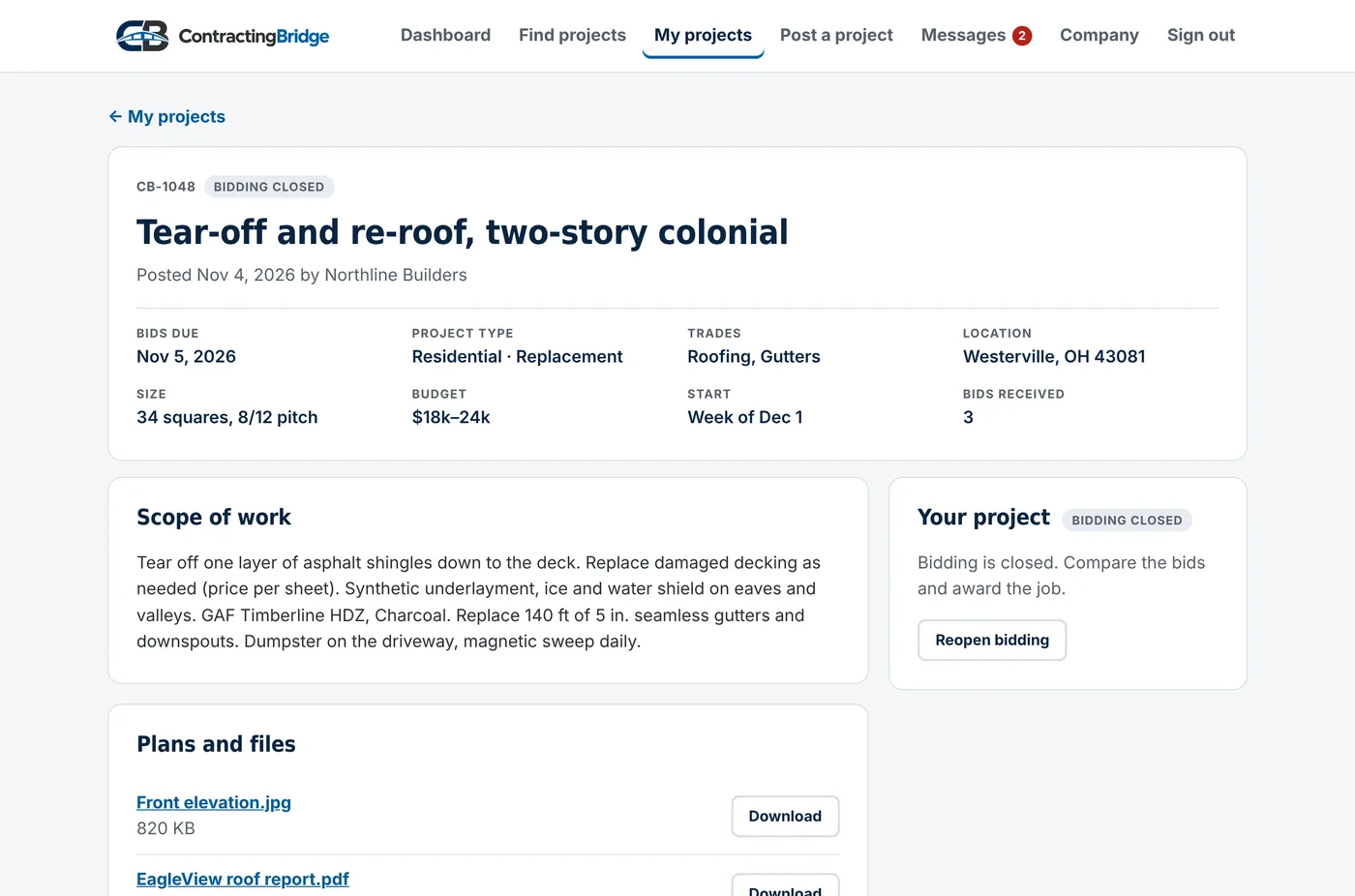
Each project gets its own page with everything a trade needs to price it. You decide who can see it and when bids are due.
- Upload PDFs, photos, spreadsheets and ZIP files up to 50 MB each
- Mark it residential or commercial
- Invite nearby trades from a list filtered by trade and distance
- Close bidding early, reopen it, or cancel the project
- Trades see the town and ZIP code, never the street address
For the trade doing the work
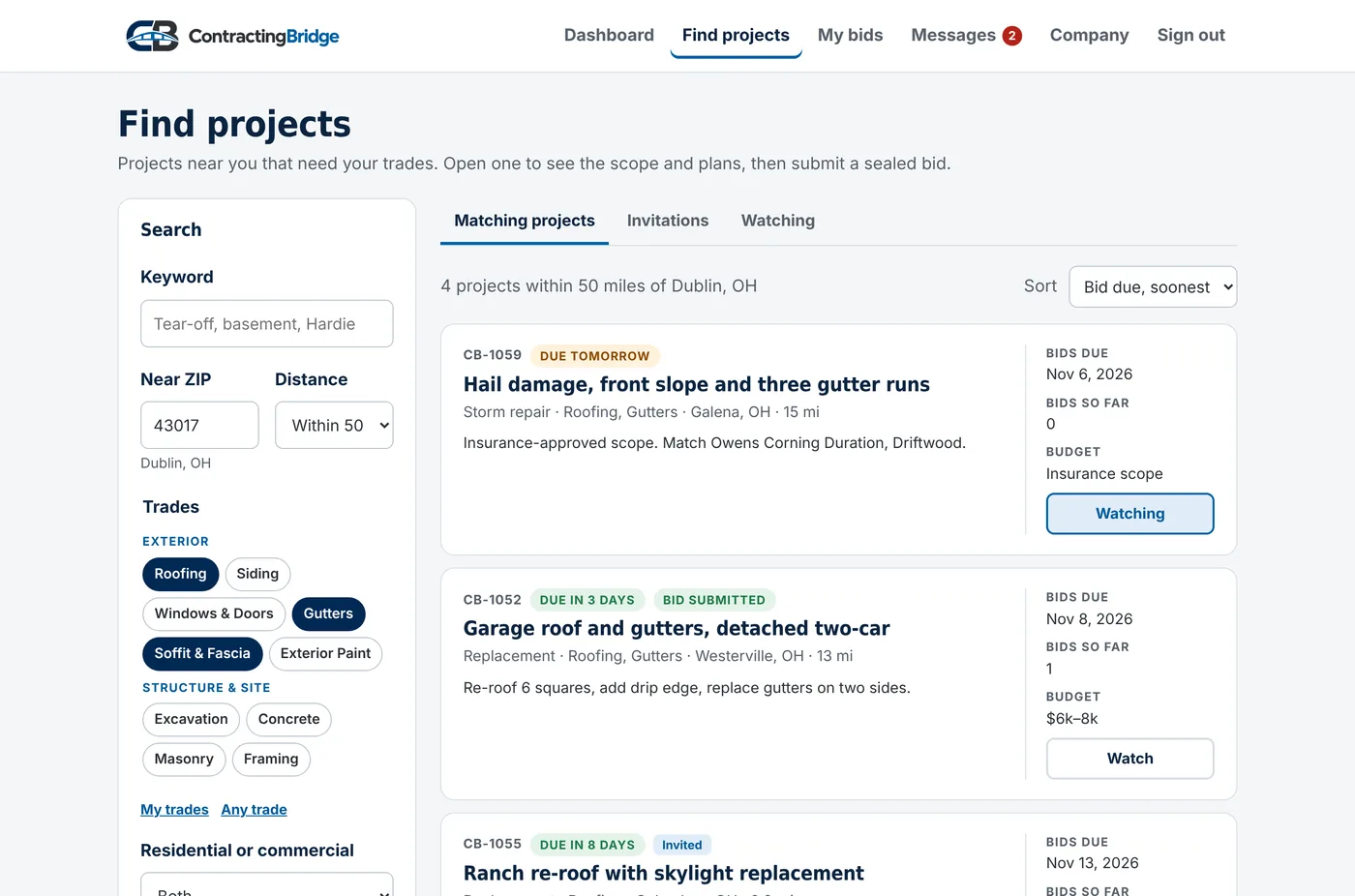
Set your home ZIP code, how far you travel and the trades you do. Find projects shows the open jobs that match, with the distance from your shop.
- Filter by trade, distance, project type, bid due date and residential or commercial
- Watch projects while you work up a number
- Invitations get their own tab, and bidding on one is always free
- See every bid you've sent and how it turned out
See bids as they arrive, award when you're ready
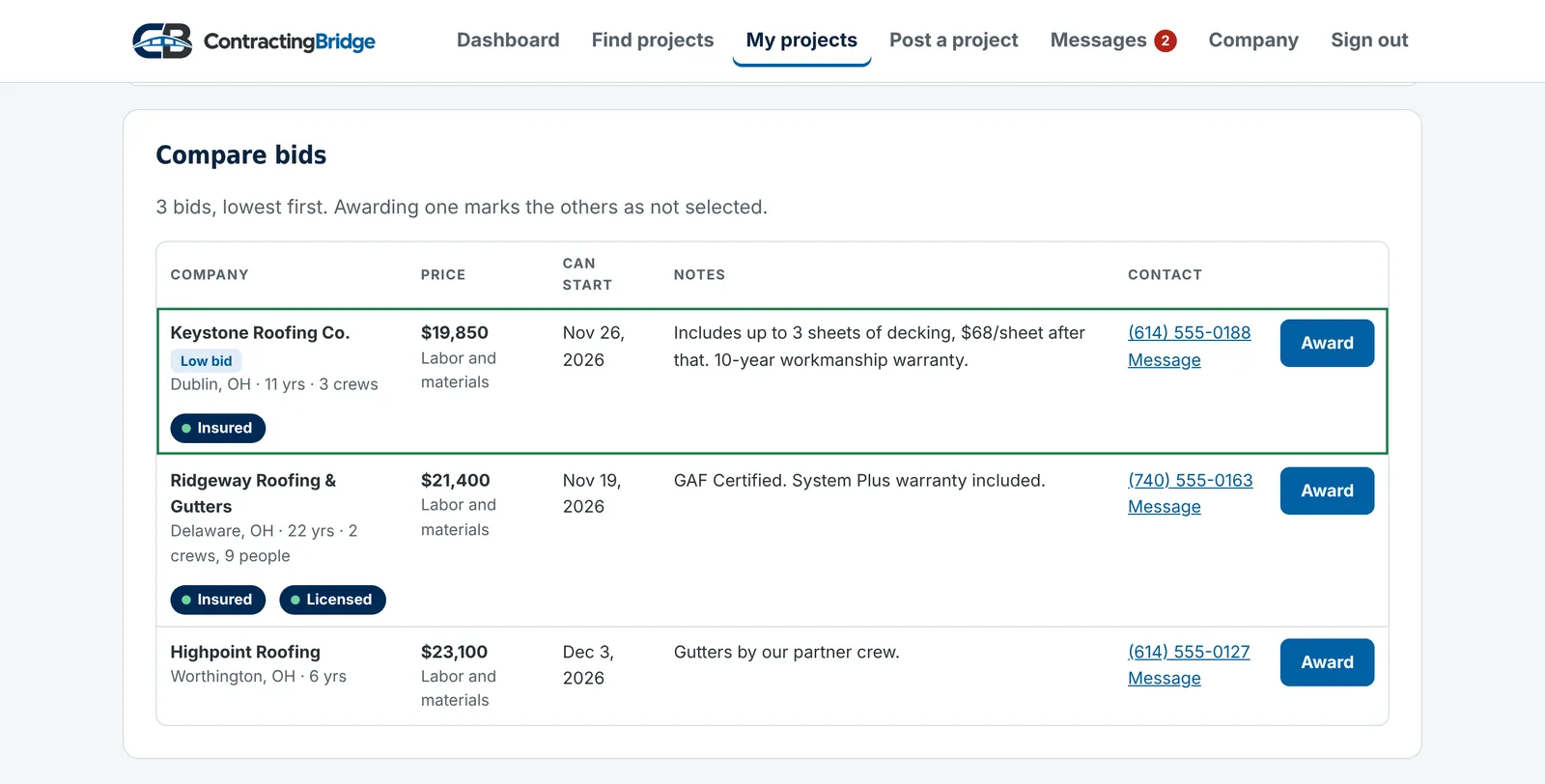
Each bid shows up on your project the moment a trade sends it, lowest first. If the number and the start date are right, award it on the spot. Bidding closes and the other bidders are told you went another way.
Want every bidder compared at the same moment? Mark the project Sealed until the due date when you post it, and bids stay hidden until bidding closes.
- Trades never see each other's bids
- One active bid per company per project, withdraw and re-bid until bidding closes
- Price, pricing basis (labor only or labor and materials), earliest start and notes
- Awarding one bid closes bidding and marks the others as not selected
Who's on the other side
Every company is reviewed before it can post or bid. Badges show what we've checked.
- Insured
- Current general liability certificate, reviewed by our team, with the expiration date on file.
- Licensed
- A contractor license, checked with the state that issued it. Optional, since not every trade needs one.
- Reviews
- Only the two sides of an awarded job can review each other.
Messages and reviews
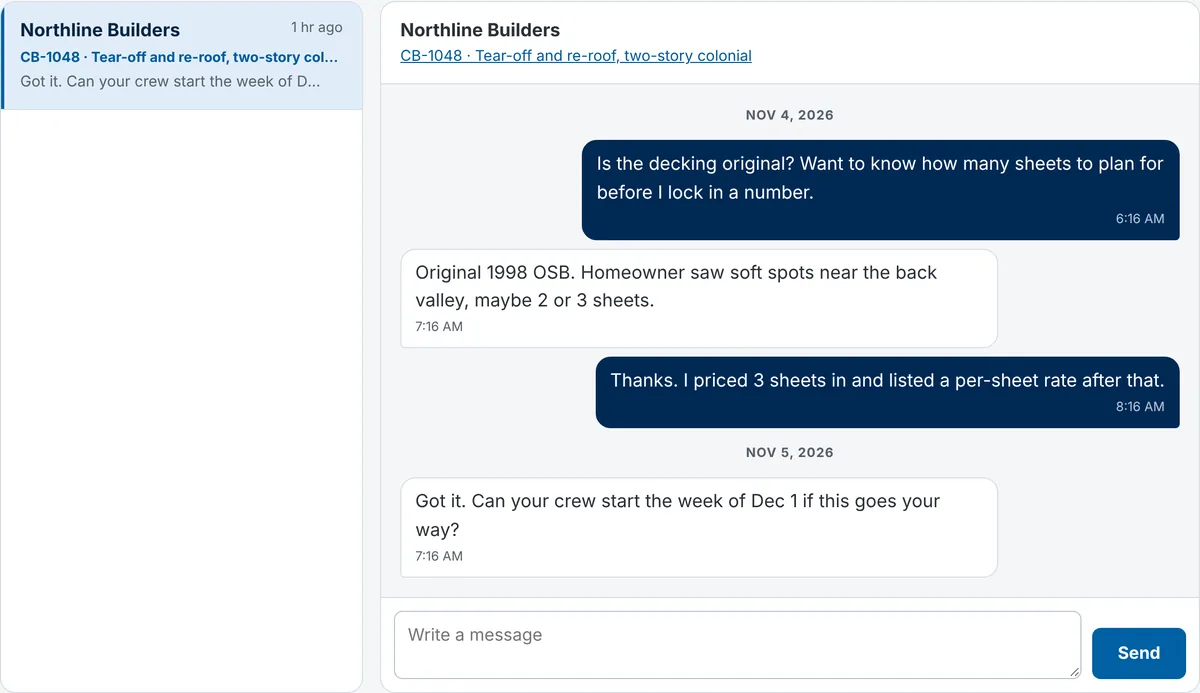
Ask a question before you bid, schedule the start date after you win, and keep it all next to the project. Only the two companies in a conversation can read it.
- Message the contractor from any project page
- Message any bidder from the comparison
- Unread messages show on your dashboard
- After the job, both sides rate each other: trades on quality and schedule, contractors on paying on time
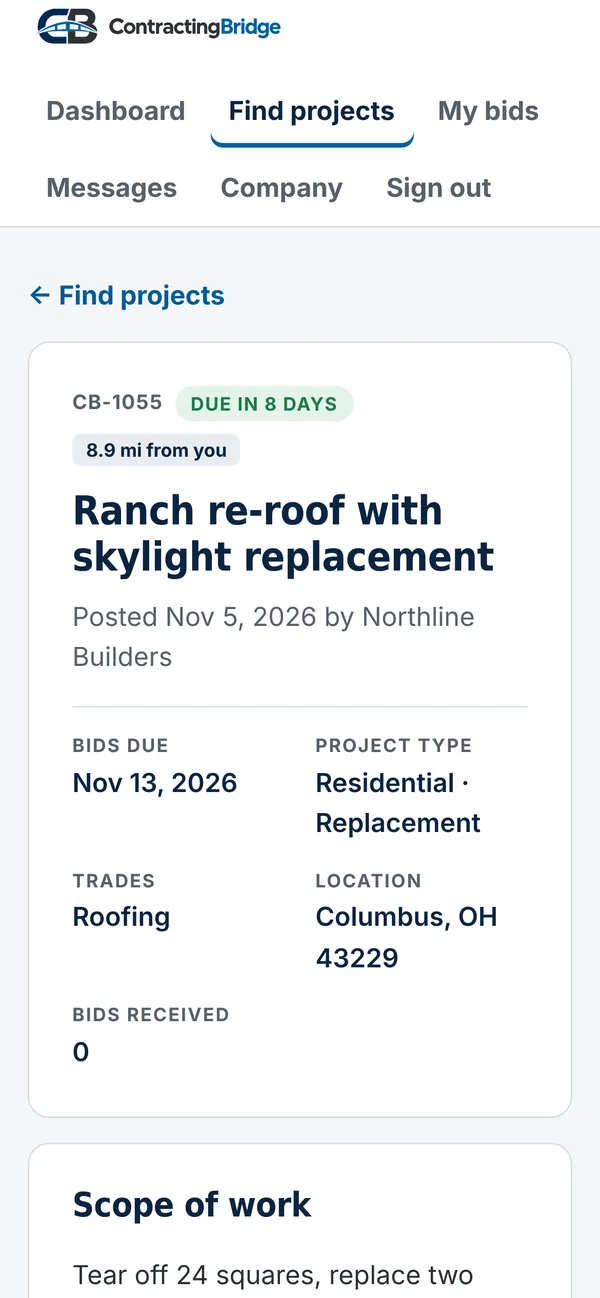
Bid from the truck
Every page works on a phone. Open the plans at the job site, type your number, add your inclusions and exclusions, and send the bid before you leave the driveway.
There's nothing to download. Sign in at contractingbridge.com from any phone, tablet or computer.
Common questions
Can I see bids before the due date?
Yes. By default you see each bid the moment it arrives, and you can award one any time, which closes bidding. If you'd rather compare everything at once, choose "Sealed until the due date" when you post, and bids stay hidden until bidding closes. Either way, trades never see each other's bids.
Who can see my project?
Only companies we've approved. Post to "Trades nearby" and it shows up for trades in the trades you picked who work in that area. Choose "Invite only" and only the companies you invite can see it. Nobody sees the street address.
What files can I upload?
PDFs, photos (JPG, PNG, HEIC), spreadsheets, Word documents and ZIP files, up to 50 MB each. Only approved companies who can see the project can open them.
Will trades see my client's address?
No. Trades see the town and ZIP code. Share the street address with the company you hire.
Is there an app to download?
No download needed. Every page works in a phone's browser. Sign in at contractingbridge.com from any phone, tablet or computer.
Who can leave a review?
Only the contractor who awarded a job and the trade who won it, once each per project. The reviewed company can post one public reply.
Set up your company in about five minutes
Company name, ZIP code and the trades you do. Insurance and license badges can come later.